Fixing One-Hour Calendar Shifts in Power Automate
I built an automatic workflow in Power Automate to keep my Outlook calendar tidy. When a new event appeared with a particular subject, it would apply the right category. Events called "Travel" would also be marked as out of office.
Then I noticed that Travel and Focus Time blocks were moving by an hour during British Summer Time. An automation intended to save me a few clicks had given me another reason to check my diary.
The problem was in the step that updated the event. It was reading the times in one time zone and writing them back as though they belonged to another. Selecting London in a drop-down wasn't enough to convert them.
What the flow does
Power Automate calls an automatic workflow a flow. Mine connects to Outlook through the Office 365 Outlook connector, which lets the flow read and change calendar events.
It starts with When a new event is created. This is the trigger: the step that starts the flow when an event is added to my calendar.
A Switch then checks the subject and chooses what to do:
- For "Travel", apply the Travel category and set Show as to out of office (
oof). - For "Focus Time", apply the Focus Time category.
- For anything else, leave the event alone.
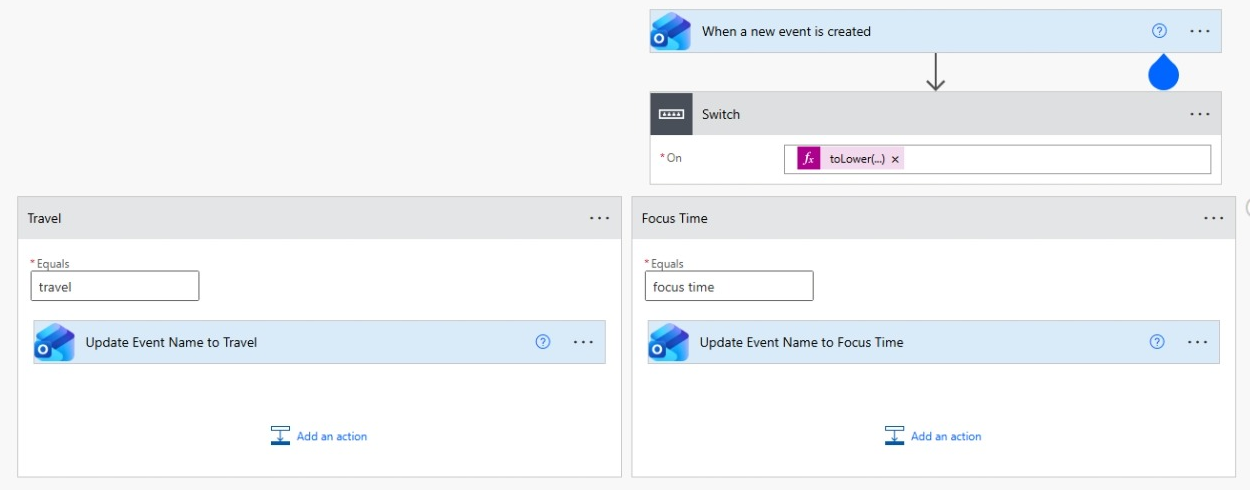
The Switch uses this expression, a short formula, to read the subject. It removes spaces from either end and changes the text to lower case, so "Travel" and "travel" are treated alike:
toLower(trim(triggerBody()?['subject']))
Both paths use an action called Update event (V4). An action is a step that does something, such as changing an event. Mine keeps the event's ID, which identifies the calendar entry, and its subject. It should change the category without moving the appointment.
The complication is that Update event (V4) requires a subject, start time, end time and time zone, even when the change I want to make is a category.
Where the hour went
The times coming from my trigger were in UTC (Coordinated Universal Time), the reference time used by many computer systems. In winter, UK time is the same as UTC. During British Summer Time (BST), the UK is one hour ahead.
So an appointment at 10:00 in London during BST has a UTC start time of 09:00.
My flow took that 09:00 value and sent it straight to the update action. But the action's Time zone field was set to London. It therefore treated the value as 09:00 in London and moved the appointment an hour earlier.
For anyone comparing their own flow, these were the original expressions in my Start time and End time fields:
triggerOutputs()?['body/start']
triggerOutputs()?['body/end']
And this was the Time zone setting in both actions:
(UTC+00:00) Dublin, Edinburgh, Lisbon, London
I confirmed the source time zone in the flow's run history, which records what each step received and returned. The trigger's timeZone value was UTC. Its start and end values were therefore UTC times, even though those two values didn't include a time-zone label of their own.
The flow could still report success. Updating the event to 09:00 was allowed; it just wasn't what I wanted.
Changing a time-zone label doesn't automatically change the time value. It's rather like changing the units written beside a measurement while leaving the number untouched.
Convert both times before updating
The fix is to convert both times from UTC to UK local time before the action updates the event.
Power Automate has a convertTimeZone expression for this. You give it a date and time, say which time zone it's in and choose the time zone you want.
These expressions assume your trigger returns UTC, as mine did. Check that in your flow's run history before copying them.
Open Update event (V4) in the Travel path. Use the Expression editor to replace the existing value in each of these fields. The small coloured boxes in the screenshots are called tokens. They stand for values or formulas, rather than times you've typed yourself.
Start time
Replace the existing Start time token with:
convertTimeZone(triggerOutputs()?['body/start'],'UTC','GMT Standard Time','yyyy-MM-ddTHH:mm:ss')
End time
Replace the existing End time token with:
convertTimeZone(triggerOutputs()?['body/end'],'UTC','GMT Standard Time','yyyy-MM-ddTHH:mm:ss')
Time zone
Keep Time zone set to (UTC+00:00) Dublin, Edinburgh, Lisbon, London.
Each expression should be the only value in its field. Remove the old token when you replace it; don't leave both side by side.
Repeat the same changes in the Focus Time path. Keep the existing categories and Travel's out-of-office setting.
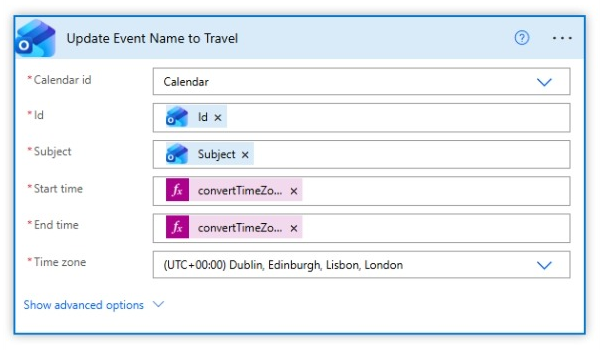
The last part of each expression, yyyy-MM-ddTHH:mm:ss, controls how the result is written: year, month, day, hours, minutes and seconds. It produces a value such as 2026-07-15T10:00:00. That's the format the update action expects, with the time zone supplied in its own field.
Why "GMT Standard Time" also covers summer
The name is confusing. Why use something called "GMT Standard Time" when the problem happens during British Summer Time?
GMT Standard Time is the name Windows uses for the UK time zone. It includes the rules for when the clocks change. The conversion uses those rules to choose Greenwich Mean Time (GMT) in winter or BST in summer.
For a 10:00 appointment in London, the conversion should work like this:
| Season | Time received in UTC | Time sent back as London time |
|---|---|---|
| Summer (BST) | 09:00 | 10:00 |
| Winter (GMT) | 10:00 | 10:00 |
These are examples of the expected times, rather than results from testing my corrected flow.
The conversion uses the appointment's date to choose between summer and winter time. That's useful if you're creating a winter appointment while it's still summer.
Simply adding an hour with addHours(...,1) would fix summer appointments but move winter appointments to the wrong time.
Check the result in Outlook
I added the expressions manually. They still need checking with new calendar events before I can say the whole flow works as intended.
If you're making the same change, here's how to check it:
- Save the flow, then create a test event called "Travel", for example from 10:00 to 11:00. Check that it gets the Travel category and out-of-office setting, and still runs from 10:00 to 11:00.
- Create a "Focus Time" test event. Check that it gets the Focus Time category without moving.
- Repeat with appointment dates in both summer and winter. Check the times in Outlook and compare them with the values recorded in the flow's run history.
Microsoft explains how to check the time zone returned by a step. Different connectors can return times differently, so check each flow before assuming it uses UTC.
The examples above cover appointments with a start and end time. If your flow also handles all-day events or repeating appointments, test those separately. Appointments in the hour that's repeated when the clocks go back need their own check too.
This change only affects events the flow processes after you save it. It won't repair appointments that have already moved, so check those separately. Running the old flow again could change them further.
If your calendar automation is moving appointments by an hour, start with the time zone on each side of the update. Check what the flow receives, convert it to the time zone you've selected, then make sure the appointment stays where you put it.